
12 KiB
12 KiB
Alexa+ UI Design Patterns for Smart Displays
Research compiled Feb 2026 from Amazon official sources, The Verge, CNET, PCMag, Android Central
1. Key UI Patterns
Home Screen / Dashboard Mode
- Personalized home screen that adapts based on user, time of day, and proximity
- Visual ID (facial recognition via 13MP camera) — recognizes who approaches and personalizes the display (your calendar, your smart home favorites)
- Proximity-aware UI: Shows larger fonts/info when you're far away, detailed widgets when close
- Ambient brightness adaptation via ambient light sensor
- Content rotation: Home screen cycles through widgets, photos, suggestions, weather, calendar events
- Home Content Categories toggle: Users can enable/disable content types (recipes, news, shopping suggestions, etc.) via Settings > Display & Appearance > Home Content Categories
Conversation Mode (Alexa+ AI Interaction)
- Voice-first, screen-second: Conversation transcription appears on-screen during voice interaction
- Visual aids: Alexa+ shows pictures, videos, recipe cards, or product images as contextual visual responses
- Multi-turn conversation: Follow-up questions without re-saying wake word; conversation context maintained
- No persistent chat window: The conversation UI appears as an overlay during interaction and returns to dashboard when done — it's NOT a chat app
- Suggestion chips: When idle, Alexa+ can display "things to try" suggestions on the home screen
Smart Home Dashboard Mode
- Full-screen smart home dashboard accessed via Menu > Smart Home or voice ("Alexa, open my smart home dashboard")
- Derived from Echo Hub interface — grid of device controls with room switching
- Map View integration — visual floor plan layout of devices (from Alexa Map View feature)
- Camera feeds inline — view Ring/security camera live feeds directly
- Home/Away/Night modes — single-tap to change home state
- Device status at a glance — lights, locks, thermostats, cameras all visible
Media/Entertainment Mode
- Media control center: Dedicated browsing pages for music, ambient sounds, podcasts, books
- TV & Videos experience: Aggregated content from multiple streaming providers
- Full-screen video playback for shows, recipes, video calls
2. Color Schemes and Typography
Visual Design Language
- Clean, modern aesthetic — described as "cleaner, sleeker full-screen UI" (The Verge)
- Dark backgrounds with bright accent elements for widgets (typical of ambient displays)
- Adaptive brightness — screen adjusts to room lighting automatically
- Photo-forward: When idle, displays personal photos from Amazon Photos as ambient wallpaper/slideshow
- Card-based UI: Information presented in distinct card/widget containers with rounded corners
- High contrast readability: Font sizes scale based on distance (proximity sensor)
Typography
- Amazon's custom typeface family (Amazon Ember)
- Large, glanceable text for time, weather, calendar — designed to be read across a room
- Smaller detail text when user is close/interacting
- Bold headers for widget titles, lighter weight for content
Color Palette (observed from press images)
- Background: Dark navy/charcoal or photo wallpaper
- Widget cards: Semi-transparent dark cards with white text, or light cards with dark text
- Accent colors: Alexa blue (#00CAFF-ish), warm amber for alerts/reminders
- Smart home controls: Color-coded by device type (warm yellow for lights, blue for locks, etc.)
- Conversation UI: Blue gradient for Alexa responses, lighter for user transcription
3. Widget Types and Layouts
Available Widget Types (Echo Show 15/21 + new Echo Show 8/11)
- Clock/Time — large, always-visible
- Weather — current conditions + forecast
- Calendar — daily/weekly/monthly views, multi-calendar family support
- Smart Home controls — quick-access device toggles
- Camera feeds — live view from Ring cameras
- Shopping list — editable list
- To-do / Tasks — task widget (coming soon as of late 2025)
- Reminders — upcoming reminders
- Music/Now Playing — currently playing media with controls
- Photos — Amazon Photos slideshow
- Timers — multiple cooking timers visible simultaneously
- Recipes — personalized recipe suggestions (coming soon)
- News/Headlines — rotating news content
- Sticky Notes — personal notes
- Skill widgets — third-party skill mini-views
- Personalized notifications — follow-ups from recent conversations
Layout System
- Grid-based widget layout — widgets snap to a grid
- Resizable widgets — can be expanded/collapsed
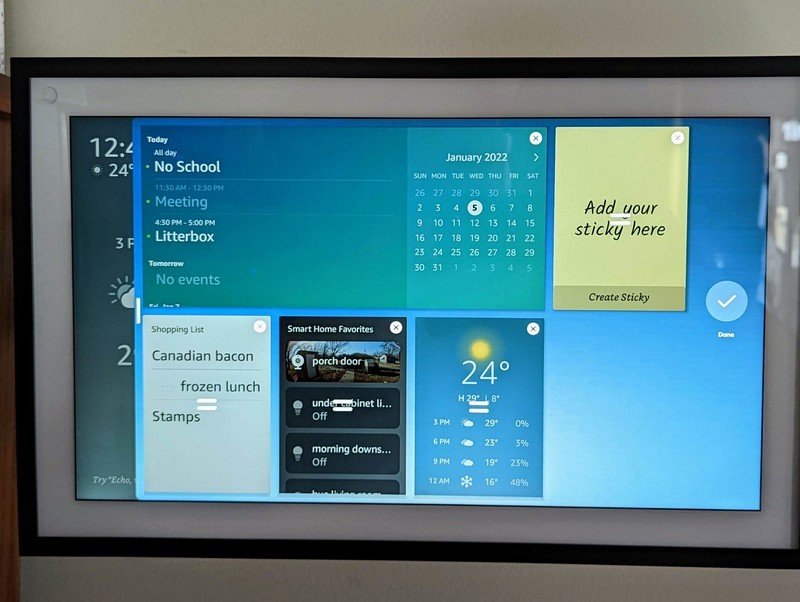
- Drag-and-drop rearrangement — long-press to enter edit mode
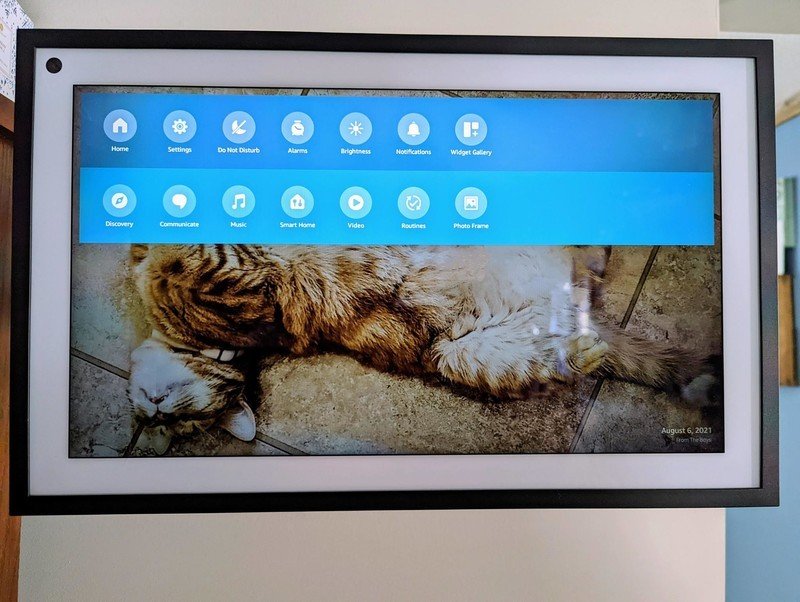
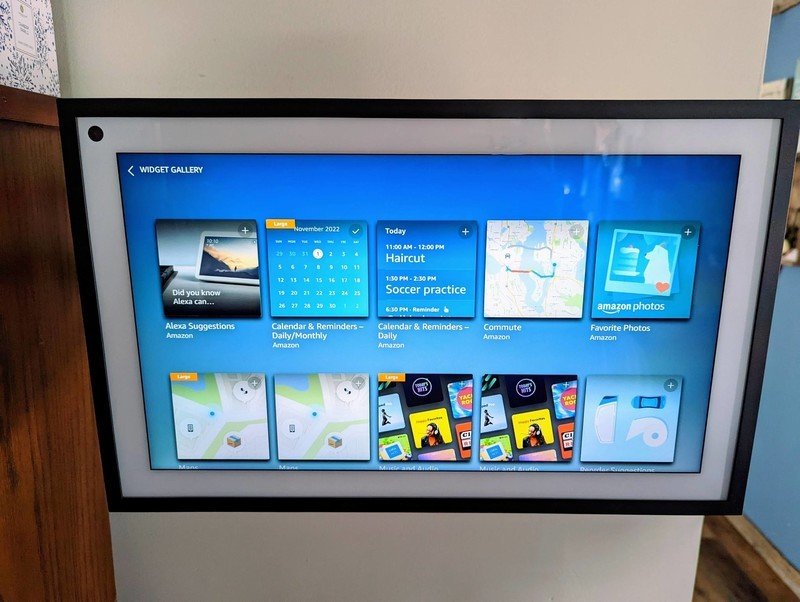
- Widget Gallery — swipe down from top to access available widgets
- Different layouts for different screen sizes:
- Echo Show 8 (8.7"): 1-2 widget columns, more compact
- Echo Show 11 (11"): 2-3 widget columns
- Echo Show 15 (15.6"): Full widget panel, landscape orientation, wall-mountable
- Echo Show 21 (21"): Largest canvas, most widgets visible simultaneously
- Left panel + right content: On larger screens (15, 21), widget sidebar on left with main content area on right
Widget Interaction
- Tap to expand — widgets open to full-screen detail view
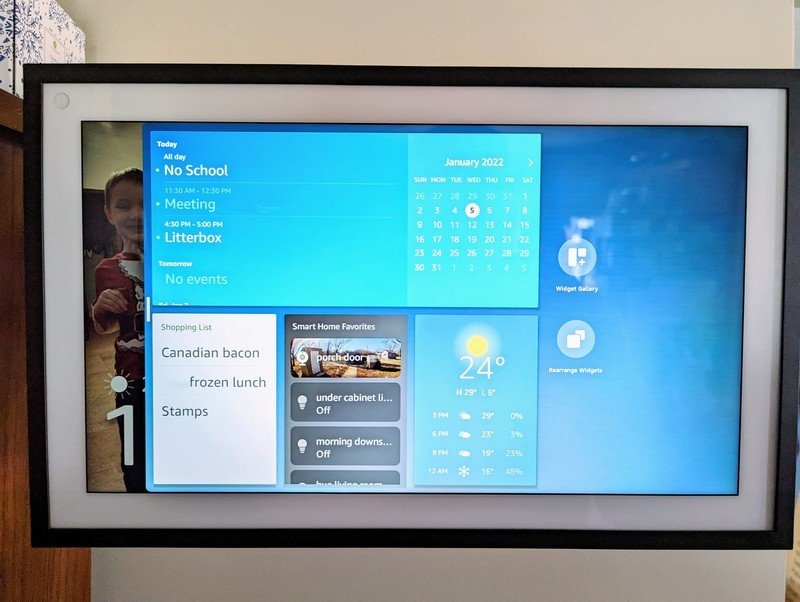
- Swipe left on widget pane handle to access rearrangement
- Voice-addressable — "Alexa, show my calendar" opens calendar widget full-screen
4. Conversation Interface Behavior
How It Appears
- Wake word trigger ("Alexa") — blue animation ring/bar appears at bottom of screen
- Listening state — screen shows blue animated waveform/indicator
- Processing — brief thinking animation
- Response — text transcription of conversation appears; visual content (images, cards, lists) shown alongside
- Multi-turn: Screen stays in conversation mode; displays ongoing transcript
- Suggestion follow-ups: After response, may show tappable suggestion chips
How It Disappears
- Conversation ends (timeout or "thank you") — UI fades back to home screen
- Gradual transition — conversation results may persist briefly as a notification/widget
- No chat history visible on home screen — it's ephemeral
- Results persist contextually: e.g., if you asked about weather, the weather widget may be promoted to prominent position
Visual Treatment During Conversation
- Overlay model: Conversation takes over most of the screen but feels temporary
- Blue accent theming during active Alexa interaction
- Cards/results appear with smooth animations
- Shopping lists, recipes, timers created during conversation persist as widgets after conversation ends
5. Home Dashboard vs Chat App — Design Philosophy
What Makes It Feel Like a HOME DASHBOARD:
- Ambient-first: Default state is glanceable information, not a conversation thread
- Photo wallpaper: Personal photos rotate as background — feels personal and decorative
- Widget grid: Calendar, weather, smart home status visible at a glance — like a family command center
- Proactive, not reactive: Shows relevant info (upcoming events, weather changes) without being asked
- Environmental awareness: Uses presence sensors, temperature, ambient light to adapt
- Family-centric: Visual ID recognizes different family members, shows personalized content per person
- Physical space integration: Smart home controls are front-and-center; the device is about controlling YOUR space
- Always-on display: Designed to be glanced at throughout the day, not actively used continuously
What Makes It NOT a Chat App:
- No persistent conversation history on the display
- No text input by default (keyboard available for accessibility but voice is primary)
- Conversation is ephemeral — appears and disappears with the interaction
- No message threads or bubbles — responses are full-screen cards, not chat bubbles
- Content-forward: After a conversation, the RESULT persists (timer, reminder, shopping list) not the conversation itself
- The display returns to ambient/dashboard mode — chat doesn't persist as the primary view
Key Design Principles:
- Glanceable over readable — information hierarchy favors quick scanning
- Voice-first, touch-second — primary interaction is voice; touch is supplementary
- Contextual intelligence — UI adapts to who's looking, time of day, what's happening
- Ambient computing — the device fades into the background of your home, activates when needed
- Family hub — shared device, personalized per user, central to household operations
- Proactive assistance — surface relevant info before being asked (upcoming event, package delivery, missed routine)
6. Screenshot URLs and Visual References
Official Amazon Press Images
- About Amazon Echo Show guide: https://www.aboutamazon.com/news/devices/getting-started-echo-show-8-11-alexa-plus-features
- New Alexa+ features overview: https://www.aboutamazon.com/news/devices/new-alexa-generative-artificial-intelligence
The Verge Hands-On Photos
- Smart home dashboard on Echo Show 21: https://platform.theverge.com/wp-content/uploads/sites/2/2025/02/IMG_2557.jpeg
- Echo Show UI with widgets: https://platform.theverge.com/wp-content/uploads/sites/2/2025/02/IMG_2564.jpeg
- Shopping list UI: https://platform.theverge.com/wp-content/uploads/sites/2/2025/02/shopping-list.png
- Full article: https://www.theverge.com/news/621008/hands-on-with-alexa-plus-smart-home-echo-show-21


Android Central Widget Customization Screenshots
- Echo Show 15 widget gallery: https://cdn.mos.cms.futurecdn.net/mcx9KfDjTDnTyTWVygkk73.jpg
- Widget pane expanded: https://cdn.mos.cms.futurecdn.net/WivGCjDJhDdAA3FYWeJFPW.jpg
- Widget rearrangement: https://cdn.mos.cms.futurecdn.net/fChVCpuYSsEDewQUpxb3QQ.jpg
- Widget customization: https://cdn.mos.cms.futurecdn.net/5B84ngX2GzNqRsdy33aUua.jpg
- Full article: https://www.androidcentral.com/how-customize-alexa-widgets-amazon-echo-show-15
Review Articles with UI Photos
- CNET Echo Show 11 review: https://www.cnet.com/home/smart-home/this-smart-display-is-the-best-add-on-my-kitchen-has-ever-had/
- PCMag Echo Show 8 (2025) review: https://www.pcmag.com/reviews/amazon-echo-show-8-4th-gen-2025
7. Technical Framework Notes
Alexa Presentation Language (APL)
- Amazon's visual design framework for building interactive voice+visual experiences
- Supports responsive layouts across different Echo Show screen sizes
- Developers can build custom visual skill responses using APL
- Reference: https://developer.amazon.com/en-US/alexa/alexa-haus/alexa-presentation-language
Device Specifications (for UI design reference)
| Device | Screen Size | Resolution | Orientation |
|---|---|---|---|
| Echo Show 5 | 5.5" | 960×480 | Landscape |
| Echo Show 8 (2025) | 8.7" | 1340×800 | Landscape |
| Echo Show 11 (2025) | 11" | 1920×1200 | Landscape |
| Echo Show 15 | 15.6" | 1920×1080 | Landscape (wall-mount) |
| Echo Show 21 | 21" | 1920×1200 | Landscape (wall-mount) |
Key Hardware Features Relevant to UI
- AZ3 Pro chip with AI accelerator — enables smooth transitions, multitasking between voice and visual
- Omnisense presence sensor (ultrasound + Wi-Fi radar) — fine motion detection for proximity-aware UI
- 13MP camera with Visual ID — facial recognition for personalization
- Ambient light sensor — adaptive brightness
- Ambient temperature sensor — can trigger routines
8. Key Takeaways for KIPP
- Dashboard-first, conversation-second: The display should feel like a home information hub that happens to have AI conversation capabilities, not a chatbot with a screen
- Ephemeral conversation UI: Conversations appear as overlays and fade back to dashboard — results persist, conversations don't
- Widget grid system: Modular, customizable cards that users arrange to their preference
- Proximity awareness: Different information density based on distance from screen
- Visual ID / personalization: Per-user customization is key to making a shared device feel personal
- Ambient mode is the default state: Photos, clock, weather — the device should be beautiful when idle
- Proactive intelligence: Surface information before being asked — upcoming events, deliveries, routine changes
- Voice-first interaction model: Touch/visual is supplementary to voice